


Your internet may be slow for reasons unrelated to your connection, such as an outdated browser or excessive activity on your computer. And sometimes, your internet connection could be to blame, whether you’re not getting the speeds you should or you’re stuck in internet traffic congestion because of your connection type. With these tips, we'll help you figure out how to get your connection back to a more reasonable speed.
Table of Contents
- Know Your Connection Type
- Step One: Is It Your Internet or Your Device?
- Step Two: Basic Troubleshooting Tips for Slow Internet
- Step Three: Quick Ways to Fix Slow Wi-Fi
- Step Four: Call Your ISP
- Uncovering Slow Internet Issues
Know Your Connection Type
Before we dive into the steps to fix slow internet, you'll need to know what type of connection you have. Here's an easy breakdown of wired and wireless connection types to help you pinpoint how you get your internet.
Internet Type | Wired or Wireless | How It Works | Popular Providers | Potential Reason for Slow Internet |
|---|---|---|---|---|
Fiber | Wired | Uses fiber-optic cables to transmit data | AT&T Fiber, Google Fiber, Verizon Fios | Usually caused by router issues or internal network congestion, not the connection itself. |
Cable | Wired | Delivers internet through coaxial cable lines shared with nearby homes | Xfinity, Spectrum, Cox | Speeds can drop during peak hours due to neighborhood congestion. Common cause of evening slowdowns. |
DSL | Wired | Uses existing copper telephone lines | Frontier, AT&T, Verizon | Speed decreases the farther you are from the provider’s central office. Often struggles with modern bandwidth needs. |
Satellite | Wireless | Sends data between satellites in orbit and a dish at your home | Starlink, HughesNet, Viasat | High latency can cause lag and buffering. Weather and data caps often impact performance. |
Fixed Wireless | Wireless | Sends signal from a nearby tower directly to a home-mounted receiver | Verizon 5G Home Internet, T-Mobile Home Internet, Rise Broadband | Weather, line-of-sight issues, and tower congestion can affect speeds. |
Step One: Is It Your Internet or Your Device?
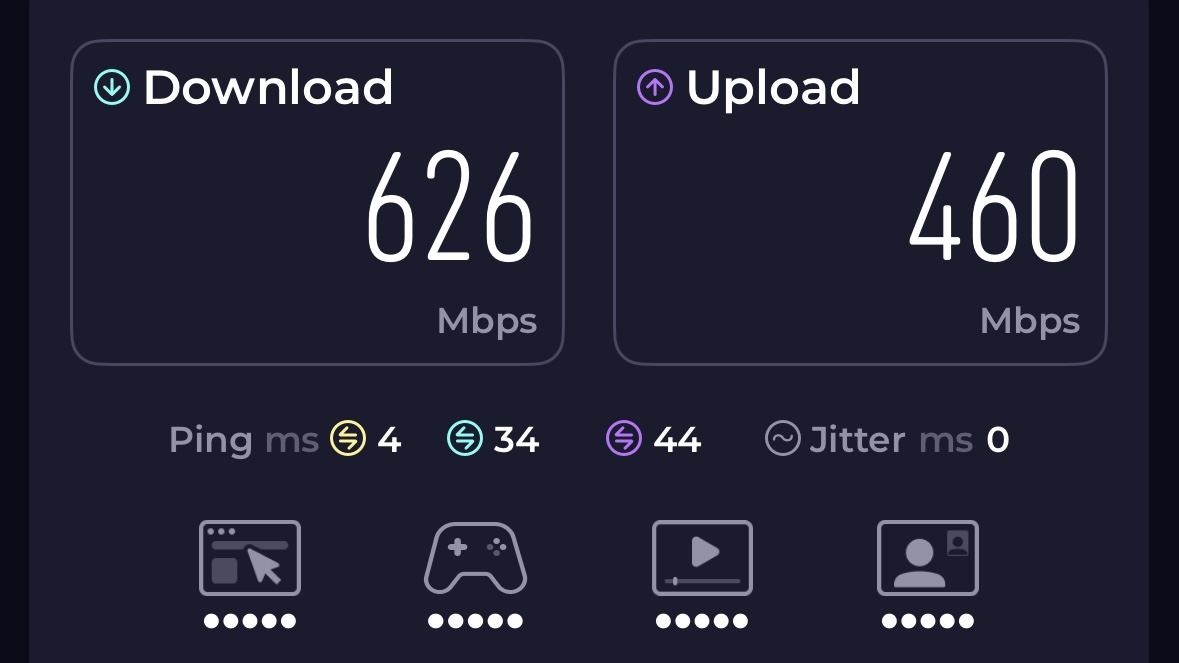
Before you touch your router or call your internet service provider (ISP), you need to pinpoint the problem. If a website isn't loading on your computer, try loading it on your phone, tablet, console, or another device. For example, if you're having an issue streaming a movie in HD, try loading a single-player game to see if that's struggling, too. You can also try using popular websites like Google, Apple, and Amazon. If the problem website loads quickly, along with the popular websites on another device, skip to step two from here.
If you’re still running into the same issue, you might have a connection problem. The first thing you want to do is run a few speed tests to make sure you’re receiving the speeds you pay for. It’s best not to use a speed test from your provider. Start by using a third-party tool instead. It's worth noting that providers can sometimes tell when you’re conducting a speed test, so it’s best to run at least one test through a virtual private network (VPN), which acts as a secret tunnel hiding your network activity.
There are lots of VPNs to choose from, but you'll want to do some research before setting up a connection. Be wary of free VPNs. While enticing, free options often come with security risks. NordVPN or ExpressVPN are two reputable companies to try. If you notice faster results from the test through a VPN, your provider might be throttling your speed.
Step Two: Basic Troubleshooting Tips for Slow Internet
It’s still not time to call your ISP yet. If your internet is slow on one computer, basic troubleshooting techniques could speed up your connection.
Restart Your Hardware
If it’s been over a month since you last restarted your router, unplug it for a minute or two, then plug it back in. If you use a mesh network, reset all of your nodes to give the system a refresh. Wait about five minutes before testing your connection again. Restarting your router, or any device connected to the internet (laptop, smart speaker, or streaming device), is like letting it go to sleep at night. We need sleep to perform our best. Internet-connected devices need to be restarted once in a while for the same reason.
Restart vs. Reset: A Restart simply refreshes your connection without changing your settings, while a Factory Reset wipes everything, including your Wi-Fi name, password, and security configurations. Never use the Reset pinhole or button unless you are prepared to reconfigure your entire network from scratch. |
Check for Updates
Be sure to check your browsers, apps, games, and device software for updates. You will experience slower performance if you don’t install updates, especially if they come with frequent notifications to remind you. If you're a remote worker, for example, you may have tools that require regular updates, and when they're not updated, your workday can drag as you wait for outdated software to load.
If your device, like a router system, is set to automatically update, it's always checking for updates in the background. Either install updates as soon as you can or change your settings to manual updates.
Step Three: Quick Ways to Fix Slow Wi-Fi
Try some of the fixes below to refresh your connection and get your Wi-Fi moving at a more reasonable pace.
Stop Background Activity
This goes further than closing apps, tabs, and windows you’re not using. Even with the apps closed, you’re able to get notifications because your devices are constantly connecting to the internet, especially if you're a remote worker connected to communication apps with your coworkers. You can turn this off to help fix your slow WiFi.
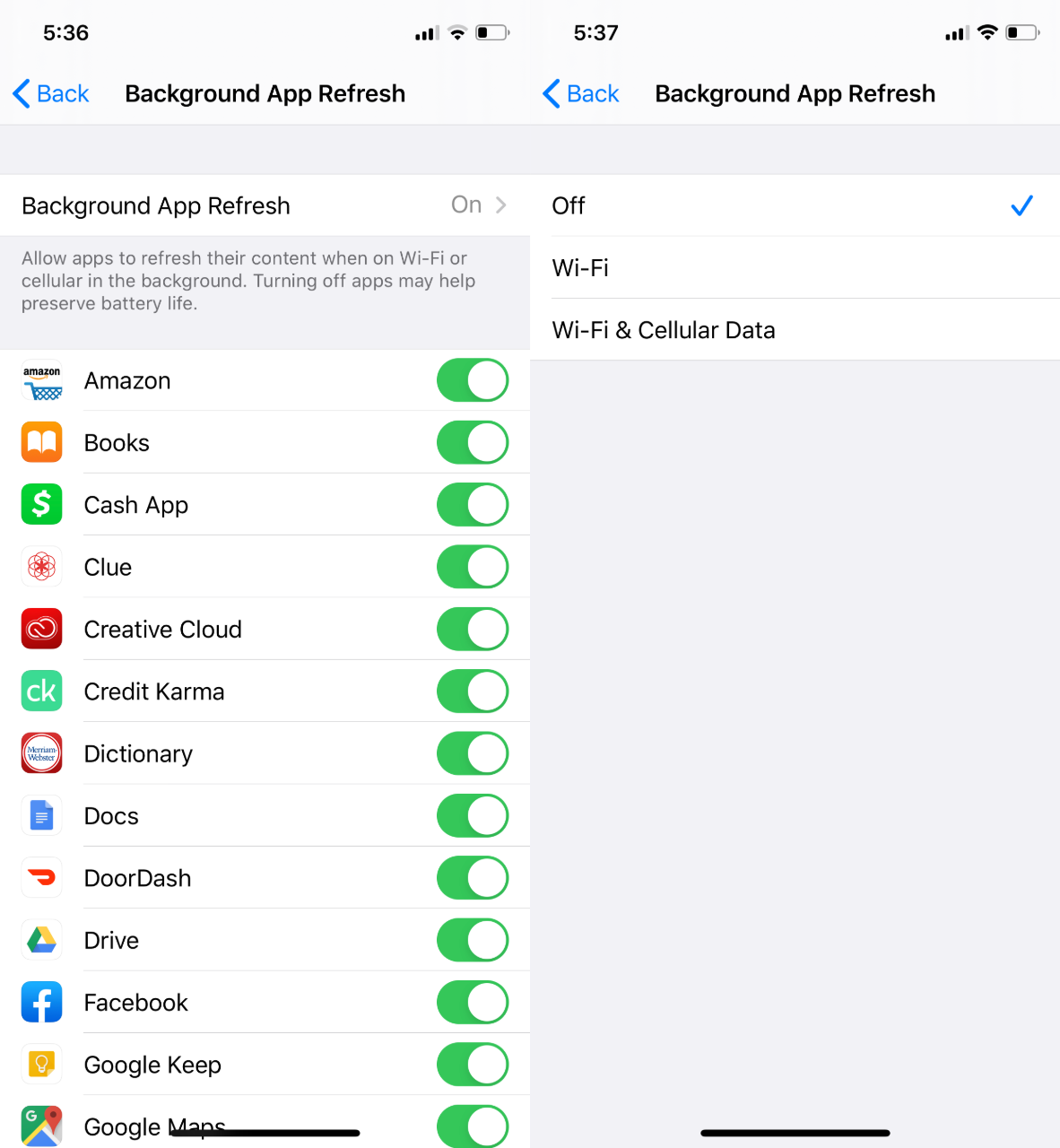
On iPhones and iPads, this is called “Background App Refresh.”
Go to your Settings>General>Background App Refresh > Background App Refresh > Background App Refresh (yes, there's a second one), and click Off. If you need certain apps to always refresh, like your email or Slack, you can choose which apps to turn background refresh off for below.
On Android phones and tablets, you need to go to your “Mobile Data Usage” menu.
Go to your Settings>Data Usage>Mobile Data Usage. Here, you should see how much data each app uses. You have to choose which apps to turn background refresh off for individually.
Device Tip: Your router continuously sends signals to your devices. It can slow down just like your phone does if there are too many things asking for data. To tell what’s using bandwidth on your network, you need to access your router settings. Our Beginner’s Guide to Routers tells you how to access your router online. |
Change DNS settings
By default, your network Domain Name System (DNS) server is provided by your ISP, which can get crowded. A DNS server is like a directory for the internet. When you go to a website, you’re sending a request for that website’s IP address. Your DNS server responds and connects you to that website. That way, you don’t have to memorize the IP address for every website that you want to visit. All you have to do is type in the website name, and your DNS takes care of the rest. Two of the most recommended DNS servers are Google and CloudFlare.
How to Change DNS on Windows 11
Windows likes to tuck these settings away, but here is the most direct path:
- Open Settings and select Network & Internet from the left sidebar.
- Click on your active connection type (Wi-Fi or Ethernet).
- Click on your network's Properties (often labeled with your Wi-Fi name).
- Find the DNS server assignment and click the Edit button.
- Change the dropdown from "Automatic (DHCP)" to Manual.
- Toggle the IPv4 switch to On.
- Enter your preferred DNS addresses.
- Click Save.
How to Change DNS on macOS
Apple keeps its steps a bit more centralized than Windows. Here is the drill for the latest versions of macOS:
- Click the Apple Menu and select System Settings.
- Click Network in the sidebar.
- Select your active connection (Wi-Fi or Ethernet) and click the Details button next to it.
- In the sidebar of the pop-up window, click the DNS tab.
- Under the DNS Servers section, click the plus icon.
- Type in the primary DNS address and press Enter. Click plus again to add the secondary address.
- Click OK, then click Apply if prompted.
Switch Channels
Household items like microwaves, baby monitors, and garage door openers can interfere with your WiFi signal. Those items use the same frequency band as wireless routers. Dual-band routers support both 2.4 GHz and 5 GHz bands, while tri-band routers also support 6 GHz bands. You probably have a dual-band router if you lease your router from your ISP.
The most important thing to know is 5 GHz bands are faster, but you need to be closer to your router. If you live in a small apartment, you likely won't notice an issue, but large homes might still struggle with 5 GHz or 6 GHz bands reaching faraway areas. If you're a gamer, it might be ideal to keep your setup closer to your router to take advantage of a 5 GHz or 6 GHz band.
Step Four: Contact Your ISP
Call your ISP if none of the above tips fixed your slow WiFi. There may be a network outage, your ISP could be throttling your speeds (did you hit your data cap?), or there may be network congestion. Consistently experiencing slow internet at night is a sign of network congestion.
If you’re paying for cable internet with speeds of 100+ Mbps but still experience buffering or frequent page load delays, consider switching to a fiber internet plan or provider. Fiber internet is the least vulnerable to network congestion when compared to satellite, fixed wireless, DSL, and cable internet.
Use our zip search tool to see if one is available in your area.
Uncovering Slow Internet Issues
With these steps, you should now have a clear diagnosis of whether your connectivity issues stem from a specific device or your actual internet service. But if your speeds remain sluggish after these optimizations, you're now fully prepared to contact your ISP with data in hand, such as speed test results and evidence of potential throttling. With your network now streamlined, you can enjoy a faster, more stable online experience or move forward with the search for a provider that actually delivers the speeds you pay for.
Frequently Asked Questions About Slow Internet
How often should I reset my router?
For most households, resetting your router once every month or two is plenty. A quick restart helps clear out memory, fix minor glitches, and keep things running smoothly (kind of like rebooting your phone). If your Wi-Fi starts acting up, speeds drop, or devices disconnect randomly, that’s a good sign it’s time for a quick reset.
What blocks the Wi-Fi signal the most?
Thick walls, especially concrete, brick, or plaster, are big Wi-Fi blockers. Metal objects, large appliances, mirrors, and even aquariums can also interfere. Distance matters too. The farther you are from the router, the weaker the signal. If your Wi-Fi struggles in certain rooms, moving the router to a more central, open spot can help a lot.
How do I tell if my internet is being throttled?
Throttling often shows up as consistent slowdowns at certain times of day or when using specific apps, such as streaming or gaming. Try running speed tests at different times. If speeds drop dramatically during peak hours but improve late at night, it could be network congestion.
How do I know if my router is old or outdated?
If your router is more than five years old, it’s likely outdated. Other signs include slow speeds, frequent dropouts, and trouble handling multiple devices. Older routers may not support newer Wi-Fi standards, which means you’re missing out on better speed and reliability — even if you’re paying for fast internet from your provider.
What is a good internet speed?
A good internet speed depends on how you use it. For casual browsing and streaming, 100 Mbps works well for small households. If you have multiple people working from home, gaming, or streaming in 4K, 500 Mbps or more is a safer bet. It’s all about matching your speed to your daily habits.