

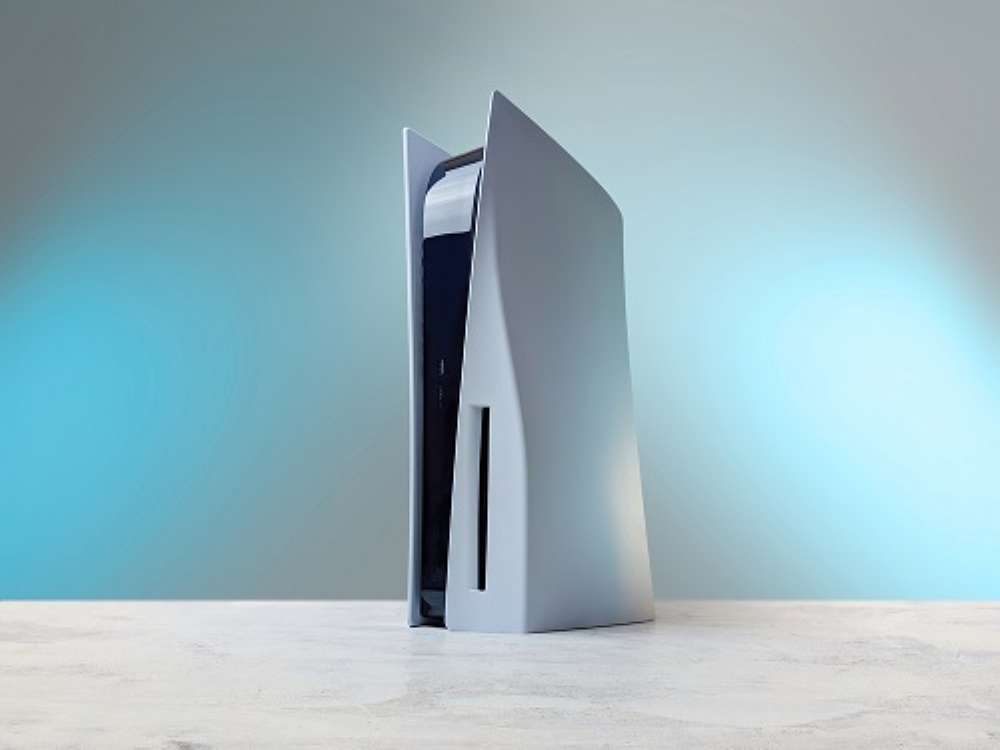
- If you’re a serious online gamer, then you need enough speed to avoid gaming lag.
- After running a PS5 speed test on both Wi-Fi and Ethernet, we found that Ethernet is faster.
- Digital video game downloads over Wi-Fi are slower, especially for larger game files.
- Upgrade to a faster internet plan or switch providers if your current speeds aren’t fast enough.
Nothing ruins your mood more than lagging behind your teammates in “Apex Legends” because of high ping or watching a digital game download at a torturously slow rate. If this has been your experience ever since you became the proud owner of a PS5, you might want to sit down with your console and try some tests.
We performed hands-on testing with results to prove that certain methods actually work. So, before you call it quits because you’re frustrated about the slow connection, take a look at the techniques we tested and the best practices below.
Table of Contents
- Comparing PS5 Speed Techniques Head to Head
- Plug In an Ethernet Cord for the Best Results
- Connect to Your 5 GHz Wi-Fi Connection
- Manage the Number of Devices on Your Wi-Fi Network
- Place Your Modem or Router Closer to Your PS5
- Choose a Popular DNS Server
- Select More Open Ports for More Accessibility and Change NAT Type
- Prioritize PS5 Traffic With QoS
- Change Service to a Faster Internet Provider
Comparing PS5 Speed Techniques Head to Head
We compared each PS5 speed improvement method against a baseline speed test at the time of testing. We then organized our findings in order of the fastest download speed achieved to the slowest.
Learn more about our methodology by clicking here.
We discovered the best technique for improving PS5 download speeds was to utilize an Ethernet cable connection. This hardwired connection method was more than 18.1% faster than our baseline Wi-Fi test with the PS5. We also found tweaks to the Wi-Fi connection were effective methods for increasing PS5 speeds. On the other hand, PS5 settings changes were less reliable overall to produce replicable results.
Rank | Technique | Top download speed test* |
|---|---|---|
1 | Plug In an Ethernet Cord | 414.8 Mbps |
2 | Connect to 5 GHz Wi-Fi | 351.3 Mbps |
3 | Manage Number of Wi-Fi Devices | 309 Mbps |
4 | Place Modem Closer to PS5 | 304.5 Mbps |
5 | Choose a Popular DNS Server | 286.7 Mbps |
6 | Select More Open Ports and Change NAT Type | Varies |
7 | Prioritize PS5 Traffic With QoS | Varies |
8 | Change Service to a Faster Internet Provider | Varies |
*Improvements in speed will vary based on your baseline internet speed, floor plan, Wi-Fi setup, and other factors.
Plug In an Ethernet Cord for the Best Results
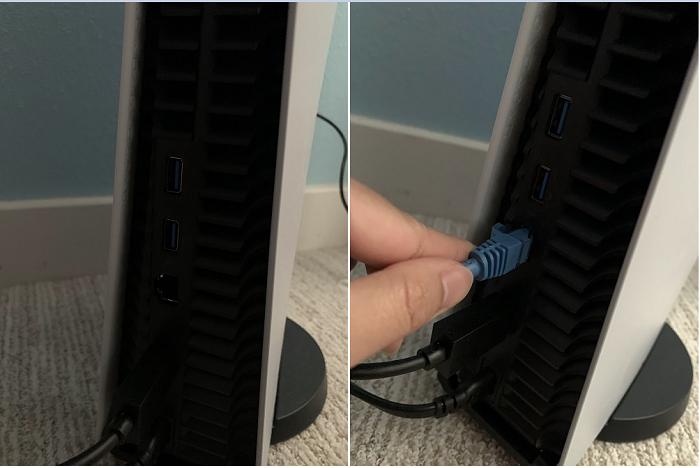
If you’ve searched articles on how to improve your PS5 connection, you’ll notice a common theme: Using an Ethernet cable is the best play. If you don’t already have one tangled up in a cardboard box somewhere, you can buy one online for $5–$15, depending on the foot measurement, brand, and category.
Ethernet cables come in several types: Cat 5, Cat 5e, Cat 6, Cat 6a, Cat 7, and Cat 8. These categories identify the cable’s speeds and how much data it can transfer per second. Cat 5 and Cat 5e are the standards, and our Ethernet wall jack, which was wired up to our AT&T router, is Cat 5e. Below is a chart of the frequencies (bandwidth) and speeds of two common Ethernet cables: Cat 5e and Cat 6.
Differences Between Cat 5e and Cat 6 Cables
Ethernet cable type | Maximum frequency | Maximum speed | Distance before degradation |
|---|---|---|---|
Cat 5e | 100 MHz | 1 Gbps | 328 feet |
Cat 6 | 250 MHz | 10 Gbps | 165 feet |
The PS5 was in one of our bedrooms, sitting nicely on the carpet floor, less than five feet from the Ethernet wall jack. We used a 10-foot Ethernet cable and had no issue finding the Ethernet port at the back of the PS5. Once we properly connected the cable on each end, we went back into the network settings. Here’s how to set up an Ethernet connection on the PS5:
- Go back to Set Up Internet Connection and choose Set Up Manually at the bottom.
- Select Use a LAN Cable.
- You’ll see the details of your LAN cable connection. Hit Done, and your PS5 should show that it’s connected.
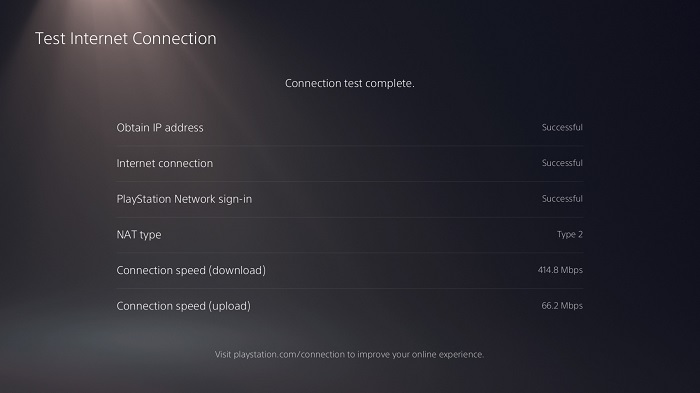
We performed several tests, and the results ranged from 380 Mbps to 420 Mbps. We found that the highest download speed was 414.8 Mbps — a huge leap from the baseline Wi-Fi speed and closer to our internet plan’s advertised download speeds of 500 Mbps.
With this information, we decided to test three games with different file sizes — 5 GB and up, 25 GB and up, and 50 GB and up — to see how fast the PS5 downloaded them on Wi-Fi versus an Ethernet connection.
Gamer's Tip: If you want a quick fix, reboot your PS5 or router and see if your connection improves. Just ,don’t forget to save your game progress first! |
The games we chose were “Splitgate,” “Apex Legends,” and “Destiny 2.” The PS5 didn’t allow us to screenshot game downloads via the shortcut menu, which was the only place where we could keep track of the full game download progress. “Splitgate” and “Apex Legends” only showed a partial download on their unique download page for the purpose of letting us play a portion of the game first while the rest finished downloading in the background. “Destiny 2” was the only one that made us download the entire game before we could play.
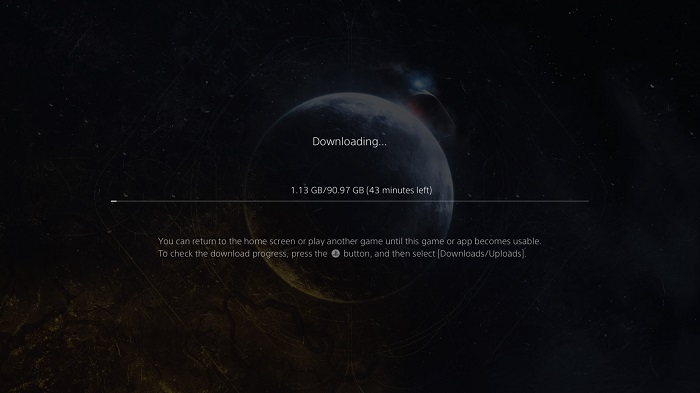
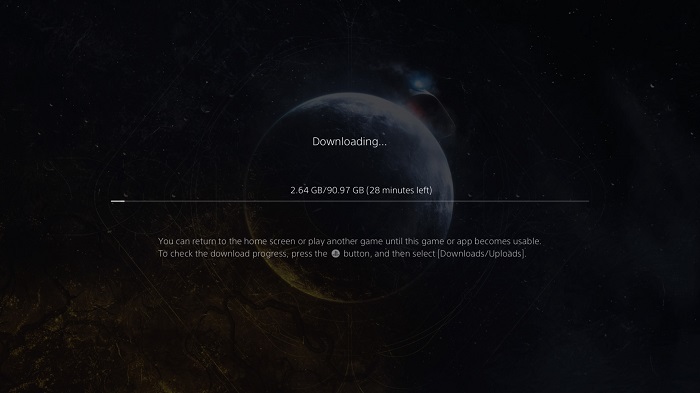
“Destiny 2” had a 34.9 percent improvement on an Ethernet-wired connection. As the biggest game out of the three, it also had the biggest increase in speed. We organized and calculated how much the download speeds improved on an Ethernet connection for all three games below.
PS5 Download Speeds: Wi-Fi vs. Ethernet
Download speed | Time to download ‘Splitgate’ (14.58 GB) | Time to download ‘Apex Legends’ (54.66 GB) | Time to download ‘Destiny 2’ (90.97 GB) | |
|---|---|---|---|---|
Playstation 5 on Wi-Fi | 351.3 Mbps | 6 minutes | 26 minutes | 43 minutes |
Playstation 5 on Ethernet | 414.8 Mbps | 5 minutes | 18 minutes | 28 minutes |
Improvement with Ethernet | 18.1% | 16.7% | 30.8% | 34.9% |
The result? Hooking up our PS5 with an Ethernet cable had a noticeable impact on our download speeds and reduced download times compared to Wi-Fi. If you’re eager to play the latest game release and don’t have patience, you’ll want to find an Ethernet cable stat.
Connect to Your 5 GHz Wi-Fi Connection
The next technique we tried was to set our PS5 Wi-Fi frequency band to 5 GHz — a common but effective way to improve Wi-Fi speeds. A 2.4 GHz frequency band has a greater range, but a 5 GHz frequency band has faster speeds. Here’s a glance at the benefits and downsides of 2.4 GHz and 5 GHz Wi-Fi:
5 GHz vs. 2.4 GHz Wi-Fi Frequencies
5 GHz Wi-Fi | 2.4 GHz Wi-Fi | |
|---|---|---|
Pros |
|
|
Cons |
|
|
When we tested the Wi-Fi connection on the 2.4 GHz frequency band, the download speed was horrendously low at 67.8 Mbps.
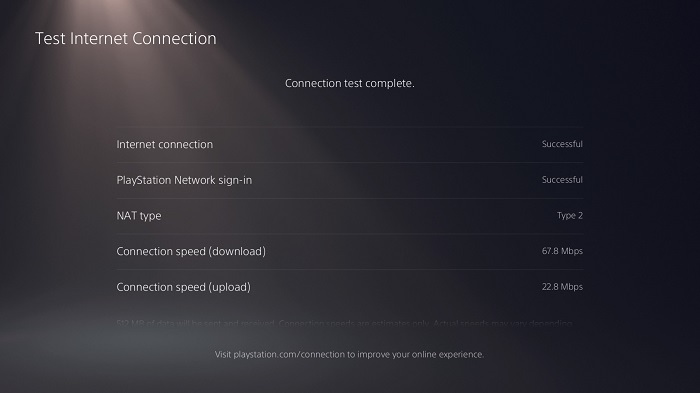
Here are the steps to changing the 2.4 GHz frequency to 5 GHz for better speeds.
- Go back to Set Up Internet Connection and hover over your Wi-Fi network.
- Press the Options button on your PS5 controller to open the pop-up menu.
- Select 5 GHz under Wi-Fi Frequency Bands.
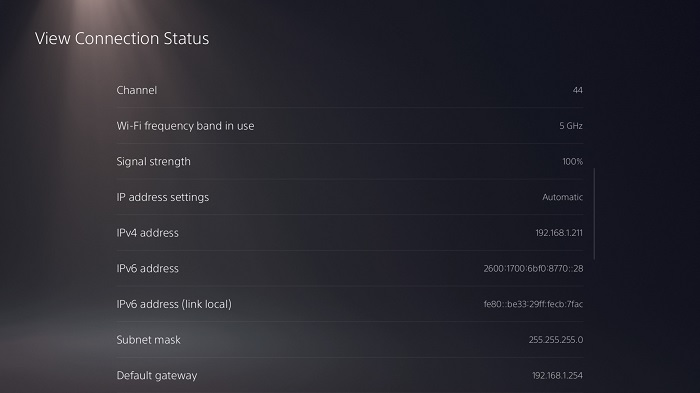
When we tested the Wi-Fi connection on the 5 GHz frequency band, the result was 315.5 Mbps in download speeds – a major increase from the measly two-digit download speeds on a 2.4 GHz frequency band.
Manage the Number of Devices on Your Wi-Fi Network
Another technique we tested was turning off Wi-Fi on our devices, such as PCs, laptops, tablets, and smartphones. Our PS5 was the only device connected to our Wi-Fi during this test, and we made sure it was already using the 5 GHz frequency band. Our baseline Wi-Fi speed test — before we managed our connected devices — was 205.5 Mbps.
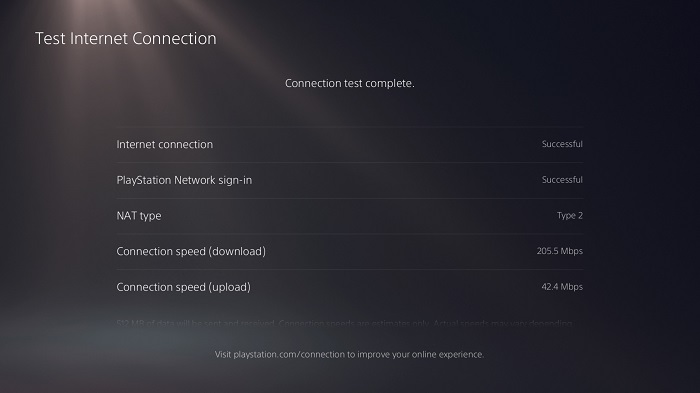
After performing another test with just the PS5 on the Wi-Fi connection, the download speed result was 309 Mbps, a better number than the initial Wi-Fi speed.
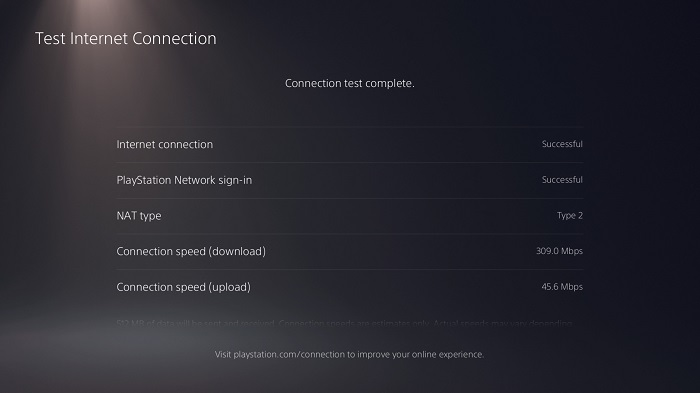
Limiting the number of devices connected to our Wi-Fi significantly improved download speed.
Place Your Modem or Router Closer to Your PS5
The next method we tested was to move the PS5 closer to our router, which is hidden in our closet. We don’t recommend placing your router or modem in an enclosed space, especially if walls or doors block the signal, because it’ll weaken the Wi-Fi signal. Unfortunately, the AT&T technician installed our router in the closet because that’s where our patch panel was located.
Gamer's Tip: Similar to how the PS5 receives frequent firmware updates, so do your router and modem. It’s recommended that both are updated every 3-5 years — otherwise, you might want to ditch the old equipment and upgrade to newer ones if your ISP allows you to purchase your own for its internet service. |
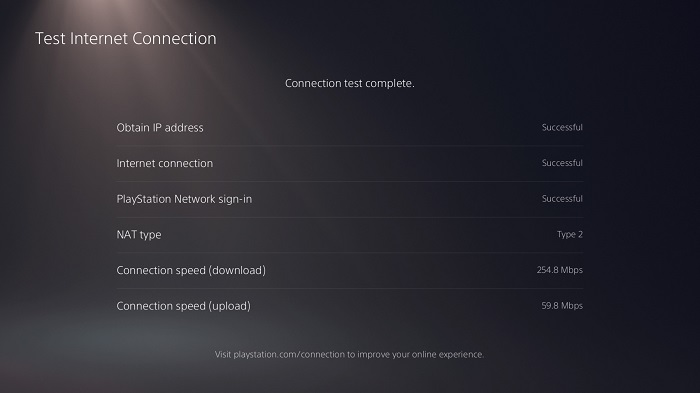
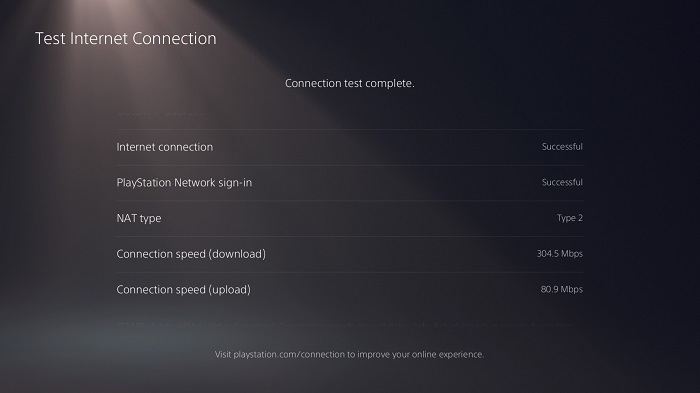
We ended up moving our PS5 closer to the router rather than the other way around. This also meant that we had to grab a monitor so we could see the screen to perform speed tests. While this required more physical effort than we liked, once we conducted the test, the result was 304.5 Mbps. We did an initial baseline Wi-Fi speed test in the original room, and the download speed result was 254.8 Mbps, so we were pleased with the improvement.
We then moved our PS5 back to the other room and connected a 50-foot Ethernet cable from the PS5 to the router in the closet. When we performed a speed test, the download speed was 414.9 Mbps, which was the same result as plugging the cable into the Ethernet wall jack.
Gamer's Tip: The PlayStation Network (PSN) servers will sometimes go down, preventing players from connecting online. If you run into network issues, double-check the PSN service status before troubleshooting your Wi-Fi. |
Moving our router and PS5 closer to each other had a noticeable improvement on a Wi-Fi connection versus connecting the PS5 directly to the router with an Ethernet cable, which didn’t make any difference.
Choose a Popular DNS Server
Next up in our arsenal of techniques was to change the Domain Name System (DNS) server, aka the internet phonebook. The DNS finds the correct IP addresses for sites whose domain names (i.e., google.com) are searched on web browsers. Your internet provider typically assigns your internet with its own DNS server, which isn’t always the best in terms of speed performance.
That’s where free, public DNS servers like Google Public DNS and Cloudflare (which we used for testing) come into play. They can improve performance, security, and privacy. A public DNS server can reroute traffic to maintain a stable connection, reduce query times, improve load times, and provide better security by protecting information from the prying eyes of our internet provider. With all these benefits listed, it’s a given that we had to change the DNS server on our PS5. Here’s how to change the DNS server:
- Go to Advanced Settings from the pop-up menu on your Wi-Fi connection.
- Change DNS Settings to Manual.
- Change the Primary and Secondary DNS four-digit resolvers based on the server.
We tested initial Wi-Fi speeds on our normal DNS settings (192.168.1.254), which resulted in download speeds of 243.9 Mbps.
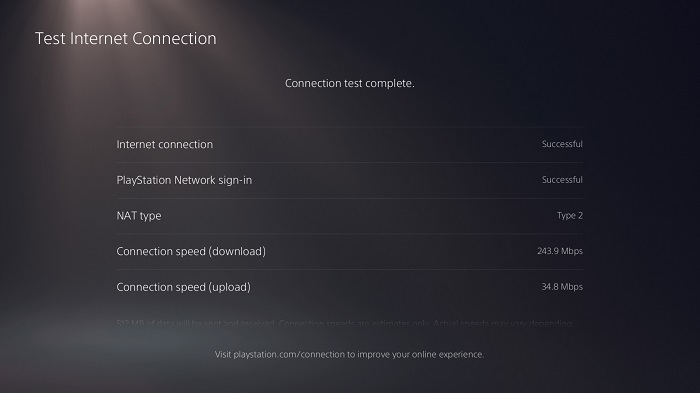
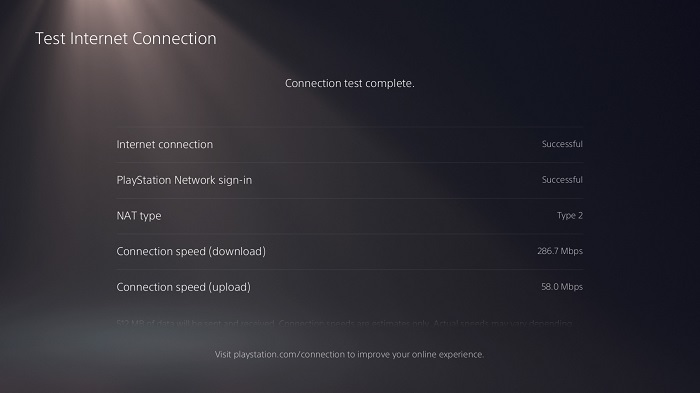
We then hopped on the Cloudflare DNS server, which has an easy-to-remember primary DNS of 1.1.1.1 and a secondary DNS of 1.0.0.1. Download speeds were 286.7 Mbps, which was a slight improvement. (Hey, we’ll take what we can get!).
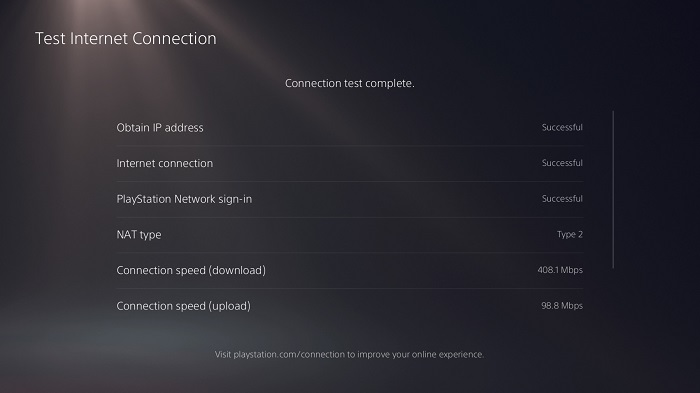
Next, we tested the normal DNS settings on a LAN connection. The download speed result was 408.1 Mbps.
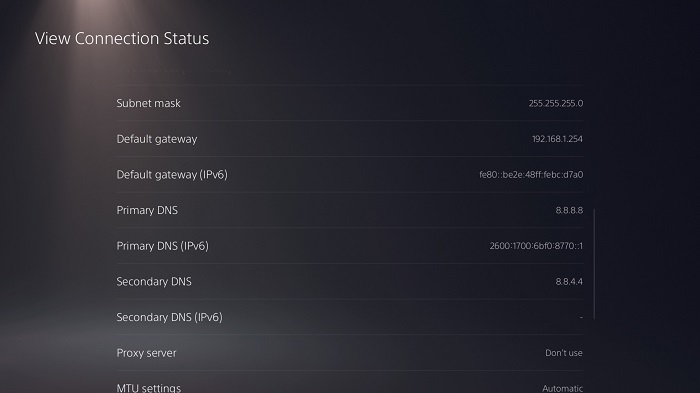
With this speed as our baseline, we set up our DNS settings to match the Google Public DNS. We followed the same steps when we set up the Cloudflare DNS settings on Wi-Fi, but this time entered 8.8.8.8 as the primary DNS and 8.8.4.4 as the secondary DNS.
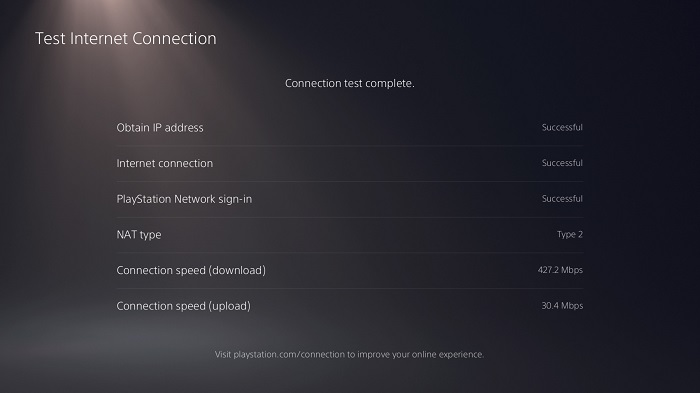
Once we performed another speed test, we ended up with 427.2 Mbps for the download speed. Similar to the Cloudflare speed test, there was a slight improvement when we changed to a public DNS server.
Changing the DNS settings is an extra step that requires a quick search, but it’s worth your time and your PS5’s performance, as our tests show. While the results weren’t a vast improvement, it was still an increase in download speeds, which was our primary goal.
Select More Open Ports for More Accessibility and Change NAT Type
Port forwarding is a technique that usually helps with connectivity and speeds for online gaming, chatting, and hosting. This is tied to Network Address Translation (NAT) Types, which either restrict traffic or allow games to create and connect to any open ports in your router. If your PS5 has NAT Type 2, you probably don’t need more open ports.
What makes port forwarding a viable method for improving your PS5 gaming experience is that the game servers can connect to open ports more quickly, reducing lag and disconnections. We didn’t test out this technique because our PS5 was already on NAT Type 2, which is ideal.
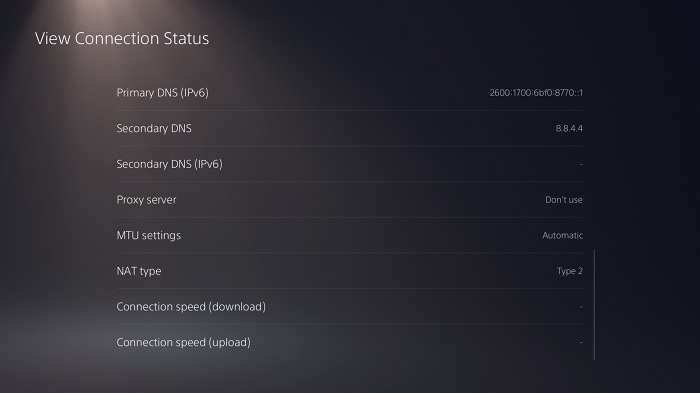
If you want to test this technique, you’ll need a static IP address directed to your PS5, your router’s IP address, and the PS5 USB ports for forwarding. A static IP address gives you the same IP address every time you power on your PS5, which is particularly useful when you experience a power outage or your game disconnects. Here’s how to find the IP addresses for your PS5 and router:
- Go to Network > View Connection Status. You’ll see information about your PS5 displayed on the screen, including the IP address and your router’s Default Gateway. Take a screenshot or jot down the numbers.
- In Settings, select Set Up Internet Connection > Set Manually.
- Choose your connection (Wi-Fi or LAN), then enter the numbers above.
Next, you’ll need to move on to your router settings, which you can configure by logging in to your router’s admin page on any web browser. Simply type your router’s IP address in the search bar and hit enter. If you haven’t set up your login credentials, your username and password are usually default (i.e., username = admin), but if you created a login, enter it in.
Now for the fun part: port forwarding! Follow these steps to begin opening up ports and configure your router to send internet data to your PS5:
- Go to the Port Forwarding section or tab (also called Virtual Servers, Apps, or Gaming). You might find it under the Firewall, Security, or LAN sections.
- Configure your PS5 IP address to the one you jotted down earlier.
- Enter the TCP and UDP ports that your router supports. If it supports Both protocol, this makes your life easier — you just create a single entry with these Protocols: 1935, 3074, 3478-3480.
- If your router doesn’t support Both protocol, you’ll need to create two separate entries for TCP ports and UDP ports. The numbers are as follows:
- Save the changes and restart your router.
You should notice an improvement with your NAT Type, and you can test it by using an open port checker tool. It seems like a long and arduous process, but port forwarding removes as many barriers as possible between your router and PS5, so the device receives incoming internet traffic faster. This technique is risky, but if a better PS5 connection is your ultimate goal, become a risk-taker to become a true gamer.
Prioritize PS5 Traffic With QoS
If you live in a large household with multiple power internet users on multiple devices that are connected to the Wi-Fi network simultaneously, you’re in for a not-so-fun time when you play online games. A useful technique to try out when your home network gets busy is to configure the Quality of Service (QoS) feature on your router, which may or may not be free depending on your internet provider. QoS prioritizes gaming traffic on your home network to reduce latency. Note that not all routers have this feature; ours didn’t, so we couldn’t perform any tests. If your router has QoS, here’s how to set it up:
- Go to Connection Status to view your PS5 settings and locate the MAC address.
- Log in to your router and find the QoS settings, if available.
- Choose your PS5 based on the MAC address noted earlier.
- Change the priority to Highest or Maximum.
And voila — your router will now prioritize gaming traffic and devices sent directly to your PS5. QoS isn’t the most accessible since not every internet provider includes it with its routers for free. If your router does have this setting, there’s nothing holding you back from using this method to improve your PS5 connection.
Gamer's Tip: Updating your PS5 is usually the easy fix for solving a slow connection. Take a closer look at firmware updates to see what has improved, and make sure your PS5 is automatically and always updated. |
Change Service to a Faster Internet Provider
If you’re still shaking your fist at your PS5’s slow performance, your next best bet is to switch internet providers. Before you jump the gun, remember that the fastest speeds don’t always equal budget-friendly. If you’re the only person in your household, extremely fast download speeds are overkill. Take a moment to figure out what type of games you play and how often – knowing your gaming habits helps determine your ideal internet speeds.
If you're ready to upgrade your internet connection, a fiber connection is the gold standard of internet, with download speeds starting from 940 Mbps and up. That being said, cable internet providers aren’t too far behind the competition, as some providers offer plans with speeds that go neck and neck with fiber service. Below are the fastest internet providers that may level up your PS5 connection:
If you’re a PS4 owner, check out our guide on how to improve PS4 speeds.
Next Steps for Improving Your PS5 Download Speeds
To improve PS5 download speeds, focus on optimizing your connection method, Wi-Fi network, or internet service for the best results. If you want an immediate boost in speed with your existing network, then connecting your PS5 via an Ethernet cable is the best technique available. Otherwise, you may need to modify or upgrade your Wi-Fi network for noticeable results. Lastly, if you still need more speed, we recommend looking for a faster internet plan offering in your area.
Methodology
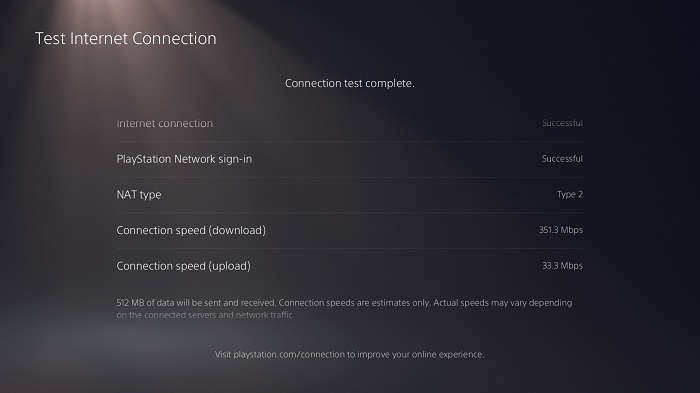
We chose to test all the most popular PS5 speed improvement techniques against a baseline speed test. We performed one speed test at the beginning of testing, and in some tests, we chose to obtain an additional baseline to avoid potential time-of-day or environmental factors.
For this testing, we used the AT&T Fiber Internet 500 plan, which has symmetrical download and upload speeds up to 500 Mbps. When testing connection speeds on the PS5 under Connection Status, the system sends and receives 512 MB of data to determine the speed results.
We ran several speed tests on the PS5 via Wi-Fi to avoid any possible fluctuations, and we chose to go with the best possible speed achieved. The highest speed we could achieve using this method was 351.3 Mbps (only 70.3% of the advertised speed), which we used as our baseline speed test for the other assessments.
Frequently Asked Questions About PS5 Download Speeds
Does PS5 download faster in rest mode or on?
PS5 downloads are often more stable in Rest Mode because the console isn’t using bandwidth for gameplay, streaming, or background apps. While Rest Mode doesn’t increase your internet speed, it reduces system activity, which can help downloads complete more efficiently and with fewer interruptions — especially for large game files or updates.
Can I leave my PS5 in Rest Mode overnight while downloading a game?
Yes, it’s safe to leave your PS5 in Rest Mode overnight while downloading games, as long as Rest Mode features like “Stay Connected to the Internet” are enabled. Sony designed Rest Mode for extended use, allowing downloads and updates to continue while using less power than keeping the console fully on.
How long is too long for a PS5 to be on?
There’s no strict time limit for how long a PS5 can stay on, but leaving it running for days without breaks isn’t ideal. Extended continuous use can increase heat and wear on internal components. Using Rest Mode during downtime and powering the console off occasionally helps manage heat and supports long-term performance.
How long do PS5 games take to download?
Download times for PS5 games vary based on file size and internet speed. Smaller games may take 10–30 minutes, while large AAA titles (50–100 GB) can take over an hour. Faster connections, wired Ethernet, and downloading during low-traffic hours can significantly reduce download time.
What are the signs of a failing PS5?
Common signs of a failing PS5 include frequent crashes, overheating warnings, loud or unusual fan noise, graphical glitches, slow performance, or games failing to load. Sudden shutdowns and persistent error codes can also indicate hardware issues. If these problems continue after software updates and cleaning, professional repair may be needed.